
How to Organize Invoices and Receipts
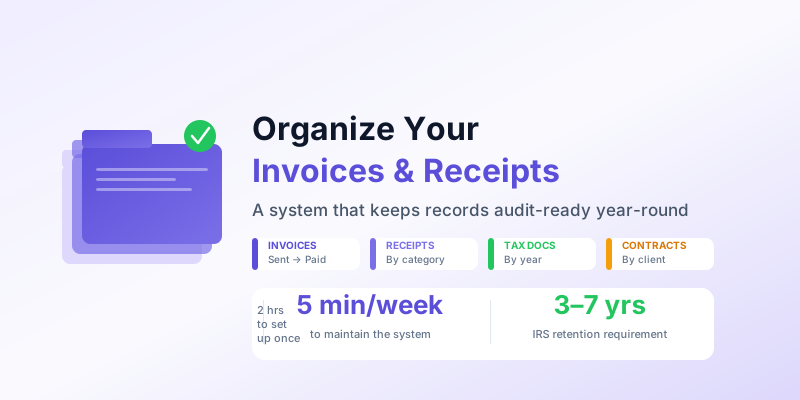
Disorganized invoices and receipts cost you in two ways: time spent hunting for documents when you need them, and money lost when you can't substantiate deductions during tax season. The IRS requires you to keep business records for at least three years — and up to seven in certain situations — which means a functional organization system isn't optional.
The good news is that an effective system doesn't require specialized software or hours of setup. A simple folder structure, consistent naming conventions, and a brief weekly habit handle everything. Here's how to build it.
The Core Problem With Ad-Hoc Organization
Most freelancers and small business owners start with "I'll deal with it later" — saving receipts to a downloads folder, keeping invoices in a single unstructured folder, or relying on email search when they need something. This works until it doesn't: tax time arrives, an accountant asks for a specific receipt, or a client disputes an invoice.
The fix isn't elaborate software. It's a consistent structure applied from the start. A well-organized manual system beats a poorly-used automated one every time.
The Folder Structure
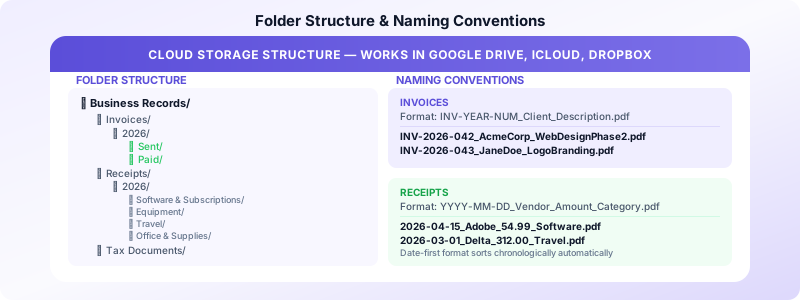
Use this structure in your cloud storage (Google Drive, iCloud, Dropbox — any will work):
Business Records/
├── Invoices/
│   ├── 2026/
│   │   ├── Sent/
│   │   └── Paid/
│   └── 2025/
│       ├── Sent/
│       └── Paid/
├── Receipts/
│   ├── 2026/
│   │   ├── Software & Subscriptions/
│   │   ├── Equipment/
│   │   ├── Travel/
│   │   ├── Office & Supplies/
│   │   └── Professional Development/
│   └── 2025/
├── Client Contracts/
└── Tax Documents/
    ├── 2025/
    └── 2024/
The key decisions in this structure:
Year at the top level — makes it easy to archive an entire year and locate documents when an accountant asks for "2024 records."
Sent vs. Paid for invoices — move an invoice from Sent to Paid when payment clears. At any moment, Sent shows what's outstanding; Paid is your income archive.
Categories for receipts — grouping by category rather than vendor makes tax preparation faster, since deductions are filed by category.
Naming Conventions
Consistent file naming makes every document findable without opening it. Use this format:
Invoices: INV-2026-042_ClientName_ProjectDescription.pdf
- INV: document type prefix
- 2026-042: year and sequential number
- ClientName: who it's for
- ProjectDescription: brief context
Receipts: 2026-04-15_VendorName_Amount_Category.pdf
- Date first (YYYY-MM-DD) — makes files sort chronologically
- Vendor: who issued it
- Amount: dollar value
- Category: matches your receipt folder category
Examples:
INV-2026-042_AcmeCorp_WebDesignPhase2.pdf2026-04-15_Adobe_54.99_Software.pdf2026-03-01_Delta_312.00_Travel.pdf
The date-first format for receipts is important: thermal paper fades and you may need to scan immediately. With the date in the filename, you always know when a purchase occurred even if the receipt image becomes unreadable.
What to File and When
Invoices: File every invoice you send, immediately after sending. Don't wait until it's paid. The invoice is a business record regardless of payment status — unpaid invoices may be relevant for bad debt deductions.
Receipts: File within 24–48 hours of the transaction. Thermal paper fades quickly — scan within a week or the receipt may be unreadable. For digital receipts (email confirmations, PDF invoices from vendors), save to the receipts folder the same day they arrive.
What counts as a receipt: Any documentation of a business expense. This includes:
- Paper receipts (scan or photograph)
- Email order confirmations
- Bank/credit card statements (for expenses without receipts)
- Software subscription invoices
- Vendor invoices for materials or services
What to keep: Keep any business expense you plan to deduct. If in doubt, keep it — storage is cheap, and you cannot reconstruct missing documentation later.
The Weekly 5-Minute Habit
The system only works if documents get filed consistently. The biggest failure mode is letting receipts pile up — a week of procrastination becomes a month, then a year.
Build a brief weekly habit:
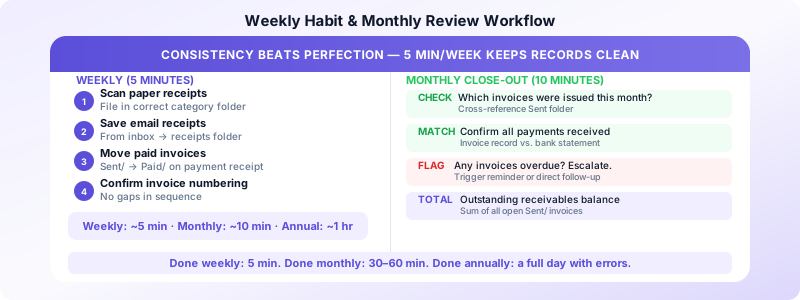
- Scan any paper receipts from the week and file them in the correct category folder
- Save any email receipts received that week from your inbox to the receipts folder
- Move any invoices that received payment from Sent to Paid
- Confirm your invoice numbering sequence is current
This takes 3–5 minutes if done weekly. If done monthly, it takes 30–60 minutes. If done annually, it takes a full day and produces errors.
Invoices Customers keeps all your sent invoices organized automatically with client and date information — eliminating the need to manually file invoice PDFs. For the broader record-keeping picture, see our guide on invoice record keeping best practices.
Matching Invoices to Payments
One of the most useful organizational habits is explicitly matching each invoice to its corresponding payment record. This serves two purposes: it confirms you were paid, and it creates a clear audit trail if questioned.
When a payment arrives:
- Move the invoice from Sent to Paid folder
- Add the payment date to the filename if not already present:
INV-2026-042_AcmeCorp_PAID-2026-04-28.pdf - Note the payment reference if paid by bank transfer (reference number, check number, or transaction ID)
For your own records, a simple spreadsheet with Invoice Number, Client, Amount, Date Sent, Date Paid, and Payment Method covers everything you need for income reconciliation and tax filing.
Digital vs. Physical Records
The IRS accepts digital records — scanned paper receipts and electronic invoices both count. Cloud storage is preferred over local storage because it survives hardware failure and is accessible from anywhere.
For high-value receipts or contracts, keeping a physical copy as well is prudent but not required. For routine expenses (software subscriptions, office supplies), digital only is sufficient.
One important rule: Don't rely solely on email as your filing system. Email search works until your account is hacked, you switch providers, or a folder gets accidentally deleted. Copy all important receipts and invoices to your dedicated folder structure, regardless of where they originally arrived.
Preparing for Tax Season
With a well-maintained system, tax preparation takes hours rather than days. The work is done in real time throughout the year; tax season is just reporting.
What your accountant needs:
- Total income: sum of all paid invoices by year
- Categorized expenses: receipts organized by category (matching IRS Schedule C categories if filing as self-employed)
- Any 1099 forms received (cross-reference against your invoice records)
- Bank statements for months where receipts are missing
What you can produce in under an hour with a good system:
- Income summary from your Paid invoices folder
- Expense summary by category from your Receipts folders
- Outstanding receivables from your Sent folder
For retention periods — how long to keep each type of document — see our detailed guide on how long to keep invoices for tax purposes.
Common Organization Mistakes
Filing by client instead of by year: Client-based folders seem logical but make year-end reporting harder. A client may appear across multiple tax years; year-based folders keep records cleanly separated.
Keeping only paid invoices: Unpaid and cancelled invoices are still business records. Keep all invoices you issue, regardless of outcome.
Waiting to scan receipts: Thermal paper fades within months. A receipt you can't read is the same as no receipt. Scan within a week of receipt.
Relying on bank statements alone: Bank statements show amounts but often not the purpose of a transaction. The IRS requires documentation of the business purpose — a bank line item for "Amazon - $143.22" does not establish what was purchased or why it was a business expense.
A clean organization system takes about two hours to set up and 5 minutes per week to maintain. That investment pays back every tax season and every time a client or auditor asks for documentation.
Sources:
