
Invoice Record Keeping Best Practices
Most freelancers and small business owners think about invoice record keeping twice a year: when taxes are due and when something goes wrong. By then, records are scattered, PDFs are missing, and reconstructing six months of billing history takes hours.
A good record keeping system takes 15 minutes to set up and about 5 minutes per week to maintain. It means your tax preparer gets clean files, your audit response takes hours instead of days, and you always know exactly what you've billed and been paid.
The Core System: One Folder Per Tax Year
The simplest system that works: a dedicated folder for each tax year, organized into sub-folders by category.
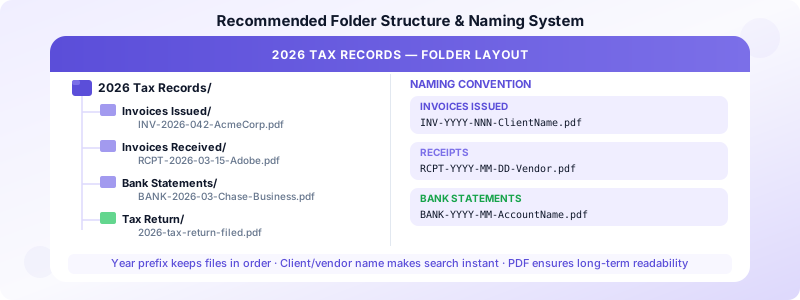
Folder structure:
2026 Tax Records/
  ├── Invoices Issued/
  ├── Invoices Received/
  ├── Bank Statements/
  ├── Payment Platform Exports/
  └── Tax Return/
Within "Invoices Issued," file each invoice as a PDF with a consistent naming convention: INV-2026-042-ClientName.pdf. The date prefix keeps them in chronological order; the client name makes searching instant.
Create this structure at the start of each year and file into it as you go — don't wait until December. A 2-minute habit of filing invoices when they're paid prevents a 2-hour scramble at year-end.
Naming Conventions That Save Time
Inconsistent file names create chaos at tax time. A consistent naming convention means you can find any invoice in seconds without opening files.
Invoice format: INV-YYYY-NNN-ClientName.pdf
INV-2026-042-AcmeCorp.pdf— invoice 42 to Acme Corp in 2026
Receipt format: RCPT-YYYY-MM-DD-Description.pdf
RCPT-2026-03-15-Adobe-Creative-Cloud.pdf
Bank statement format: BANK-YYYY-MM-AccountName.pdf
BANK-2026-03-Chase-Business.pdf
The year prefix keeps files sorted chronologically in any folder view. The client or vendor name makes keyword search work. This system takes under a minute to apply to each new document.
What Records to File and Where
Invoices Issued folder:
- Every invoice you send to clients, as a PDF
- Credit notes or invoice corrections
- Quotes that converted to invoices (link them together)
Invoices Received folder:
- Contractor invoices you paid
- Subscriptions and software receipts
- Equipment and supply receipts
- Any business expense with a receipt
Bank Statements folder:
- Monthly statements for every account used for business
- Keep for the full year, even months with no unusual activity
Payment Platform Exports folder:
- Annual transaction exports from Stripe, PayPal, Venmo, Zelle
- Most platforms offer CSV or PDF exports in account settings
Tax Return folder:
- Copy of each year's filed return
- Estimated tax payment confirmations
- Any IRS correspondence
The Weekly 5-Minute Filing Habit
The biggest difference between organized and disorganized records isn't the system — it's consistency. One filing session per week prevents buildup.
Weekly routine (Friday or Monday, 5 minutes):
- Open any invoices paid since last week, save as PDF, file in "Invoices Issued"
- Save any receipts from the week into "Invoices Received"
- If a payment platform settlement arrived, save the statement
That's it. The discipline is small; the payoff at tax time is enormous.
When you get paid: Mark the invoice as paid in your invoicing app immediately. Don't wait. The paid date and amount are bookkeeping data you'll need — keeping them current in real time is far easier than reconstructing them later.
Digital Storage: Where to Keep Your Records
The IRS accepts digital records, so you don't need paper. What you need is:
Reliability: Your records need to survive device failure. Local storage only (a folder on your laptop) is a single point of failure. Use cloud storage with automatic sync.
Accessibility: You need to be able to produce records on short notice. Cloud storage accessible from multiple devices is better than an external drive you might not have with you.
Durability: PDFs remain readable across decades and operating systems. Proprietary formats from specific apps may not. When exporting, choose PDF.
Recommended options:
- Google Drive or Dropbox for cloud storage with automatic sync
- iCloud Drive if you're in the Apple ecosystem
- Your invoicing app's export function for creating the PDFs
Avoid storing records only in accounting software you pay for monthly. If you cancel the subscription, your records may become inaccessible. Always export to PDF and store independently.
Matching Invoices to Payments
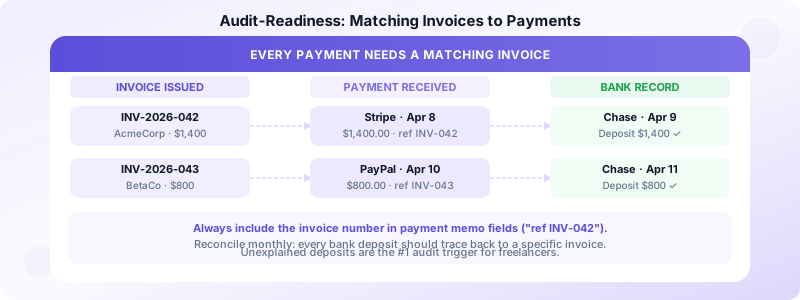
One of the most common audit preparation problems: payments received that don't clearly match an invoice. A client pays a round number that doesn't match any single invoice, or a payment arrives weeks after the invoice and gets filed in the wrong month.
Best practice: When a payment arrives, note the invoice number in your bank records or payment tracking system. "Payment for INV-2026-042" in the memo or notes field creates an auditable link.
For bank deposits that cover multiple invoices, note all invoice numbers: "INV-2026-039, 040, 041 — batch payment from Acme Corp."
Reconcile monthly: compare your list of issued invoices against payments received. Any gap is either an unpaid invoice (follow up) or a payment you haven't matched (find the invoice). A 10-minute monthly reconciliation prevents a 3-hour December reconciliation.
Invoices Customers tracks invoice status and payment dates automatically, giving you a running record without manual entry. For IRS retention rules on how long to keep these records, see our guide on how long to keep invoices for tax purposes.
Preparing for an Audit
An audit request is stressful, but with organized records it's manageable. What the IRS typically wants to verify:
- That income reported matches invoices and payment records
- That deductions claimed have supporting receipts
- That there are no unexplained deposits larger than reported income
With a clean folder structure, responding to an audit information request takes 2–3 hours of gathering and organizing files rather than days of reconstruction. The difference is entirely in whether records were maintained in real time or assembled after the fact.
Audit-readiness checklist:
- Every invoice has a matching payment record
- Bank deposits can be traced to specific invoices
- All expense receipts are filed and match claimed deductions
- Filed tax returns are archived alongside their supporting records
Common Record Keeping Mistakes
Only keeping invoices, not receipts: Both sides of your records matter. Income is proven by invoices; deductions are proven by receipts. Missing either creates problems.
Filing by client instead of by year: When tax time comes, you need records organized by tax year, not by client. A client you've billed for three years has records across three tax year folders.
Relying on email as your archive: Email is searchable but not organized, can be lost with account changes, and is not a substitute for a structured folder system.
Waiting until tax season to organize: By the time you're looking for a receipt from 9 months ago, the email may be buried and the receipt lost. File in real time or weekly.
Download Invoices Customers to create professional invoices, track payment status, and export your invoice history as PDFs — giving you the foundation of a clean record keeping system from day one. For a complete invoicing workflow setup, see our guide on how to create professional invoices.
