
How to Convert an Estimate to an Invoice
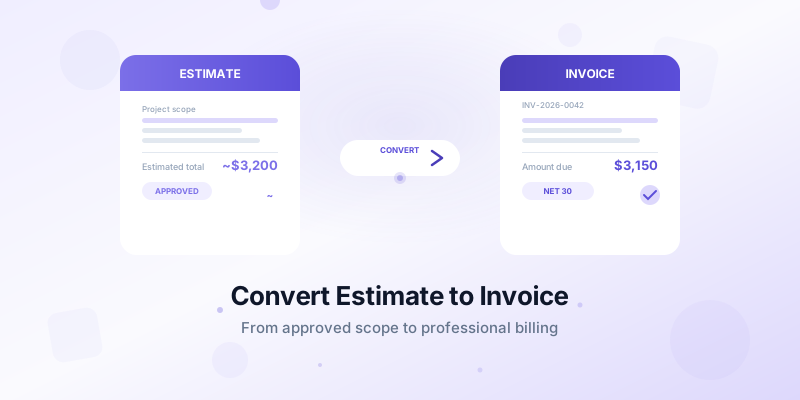
You finished the project, the client is happy, and now you need to get paid. If you started with an estimate, the fastest path to payment is knowing how to convert an estimate to an invoice correctly. A smooth conversion means fewer errors, faster payments, and a more professional client experience.
Many freelancers and contractors retype everything from scratch when creating an invoice. That wastes time and introduces mistakes — wrong line items, missing charges, outdated client details. A structured conversion process eliminates those risks. Here's exactly how to do it, step by step.
Why Converting Estimates Properly Matters
Skipping a proper conversion process leads to real problems. A mismatched invoice confuses clients and delays payment. A missing line item means you eat the cost. An incorrect total damages your credibility.
When your invoice aligns with the original estimate, clients can quickly verify the charges and approve payment. They already reviewed and accepted those line items once. Seeing familiar numbers builds trust and reduces back-and-forth questions.
Proper conversion also protects you legally. If a client disputes a charge, you can point back to the approved estimate and show exactly how the invoice maps to it. This paper trail matters when invoices go unpaid — clear documentation strengthens your position. For more on the legal differences between these two documents, read our guide on estimate vs invoice differences.
Step-by-Step: Convert Your Estimate to an Invoice
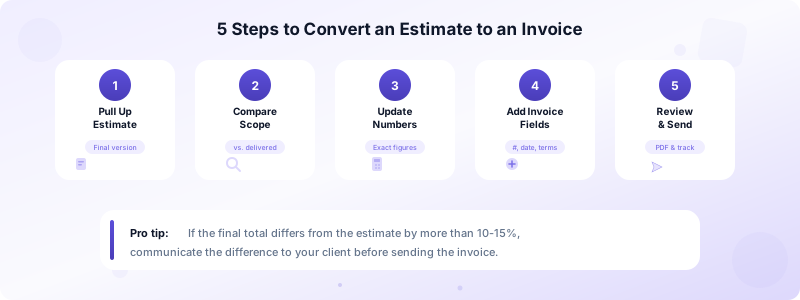
Follow these five steps every time you convert an estimate to an invoice. They work whether you're a graphic designer billing $2,000 for a brand package or a contractor closing out a $45,000 renovation.
Step 1: Pull up the approved estimate. Open the original estimate the client accepted. Confirm the version — if you sent revisions, make sure you're working from the final approved version, not an earlier draft.
Step 2: Compare scope to actual work. Walk through each line item and check it against what you delivered. Did the project stay within scope? Did the client request additions? For example, if you estimated 8 hours of consultation but delivered 10, note that difference now.
Step 3: Update quantities and pricing. Replace estimated figures with actual figures. Fixed-price items stay the same. Hourly or material-based items get updated to reflect real usage. If you quoted "10-15 hours at $120/hr" on the estimate, the invoice should show the exact hours — say, "12 hours at $120/hr = $1,440."
Step 4: Add invoice-required fields. Your estimate doesn't include everything an invoice needs. Add these elements:
- A unique invoice number (use a consistent numbering system)
- The invoice issue date
- A payment due date based on your terms
- Payment instructions (bank transfer, check, online payment)
Step 5: Review and send. Double-check the total. Verify the client's name and address. Generate a PDF and send it. If the final amount differs significantly from the estimate, call or email the client before sending — surprises kill trust.
What Changes Between an Estimate and an Invoice
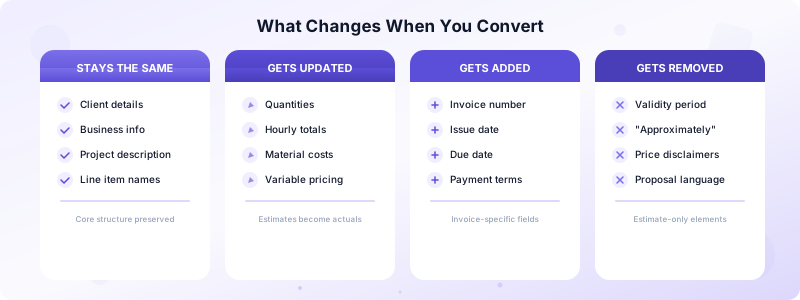
Not everything on an estimate transfers directly to an invoice. Understanding what stays, what changes, and what gets added prevents conversion errors.
What stays the same: Client details, your business information, project description, and line item descriptions. These form the backbone of both documents. If the scope didn't change, the item list should look nearly identical.
What gets updated: Quantities, hourly totals, material costs, and any variable pricing. A landscaping estimate might list "mulch — approximately 8 cubic yards at $45/yd." The invoice updates that to "mulch — 7 cubic yards at $45/yd = $315" based on actual usage.
What gets added: Invoice number, issue date, due date, payment terms, and payment instructions. These elements don't exist on an estimate because they only apply once work is complete. For guidance on setting clear terms, see our post on how to write payment terms on an invoice.
What gets removed: Validity periods ("this estimate is good for 30 days"), disclaimers about pricing being approximate, and any language that positions the document as a proposal. Your invoice is a definitive request for payment — it should read that way.
Common Mistakes When Converting Estimates to Invoices
Even experienced business owners make these conversion errors. Avoid them to keep your billing process tight.
Forgetting to update variable costs. You estimated 20 hours but worked 24. If you don't update the line item, you lose revenue on 4 billable hours. Always reconcile time and materials before converting.
Leaving estimate language on the invoice. Phrases like "approximately," "estimated total," or "subject to change" have no place on an invoice. Replace them with exact figures and definitive language.
Not adding an invoice number. Every invoice needs a unique number for your records and the client's accounting department. Skipping this step looks unprofessional and creates bookkeeping headaches for both parties.
Surprising clients with a higher total. If the final cost exceeds the estimate by more than 10-15%, communicate the difference before sending the invoice. A brief email explaining what changed and why goes a long way. Clients who feel blindsided by a bigger bill take longer to pay — or dispute the invoice entirely.
Retyping instead of converting. Manually recreating an invoice from an estimate introduces typos, missed items, and wasted time. Use a tool that carries data forward automatically.
The Fastest Way to Convert Estimates to Invoices
The manual process works, but it's slow. Every minute you spend reformatting documents is a minute you're not doing billable work. The right tool eliminates the busywork entirely.
Invoices Customers lets you convert an estimate to an invoice with a single tap on your iPhone. The app transfers all line items, client details, and pricing instantly. You review the numbers, add your payment terms, and send a polished PDF — no retyping, no missed charges.
Here's what makes the conversion seamless:
- One-tap conversion pulls every line item from the approved estimate into a new invoice
- Client details carry over automatically — name, address, and contact info stay linked
- Status tracking shows you which estimates are approved, which invoices are outstanding, and which are paid
- PDF generation creates a professional document you can send or print immediately
- Offline access means you can convert and send invoices from a job site with no internet
You don't need an account or signup. Your data stays on your device, and you can start converting estimates to invoices in seconds.
Download Invoices Customers from the App Store and turn your approved estimates into professional invoices with one tap.
