
How to Send an Invoice from Your Phone
You finished the job, the client is happy, and now you need to get paid. But you're on-site, in transit, or away from your desk. Knowing how to send an invoice from your phone means you never have to wait until you're back at a computer. You bill immediately, while the work is fresh and the client is primed to pay.
Mobile invoicing has gone from a workaround to the standard for freelancers, contractors, and small business owners. Here's exactly how to do it right.
Why Mobile Invoicing Gets You Paid Faster
The longer you wait to send an invoice, the longer you wait to get paid. Research consistently shows that invoices sent within 24 hours of completing work get paid faster than those sent a week later. Your phone eliminates that gap entirely.
Think about a typical scenario. You're a freelance photographer who just wrapped a shoot. Instead of driving home, opening your laptop, and creating an invoice from scratch, you pull out your phone and send a polished PDF before you leave the parking lot. The client receives it while your work is still top of mind.
Mobile invoicing also reduces errors. When you invoice on the spot, you remember every line item, every extra deliverable, every change order. Wait three days and you're guessing — which leads to the kind of invoicing mistakes that cost you money.
Beyond speed, there's the professionalism factor. A clean, well-formatted invoice sent from your phone looks identical to one created on a desktop. Your clients don't know the difference, and they don't need to.
Set Up Your Phone for Invoicing
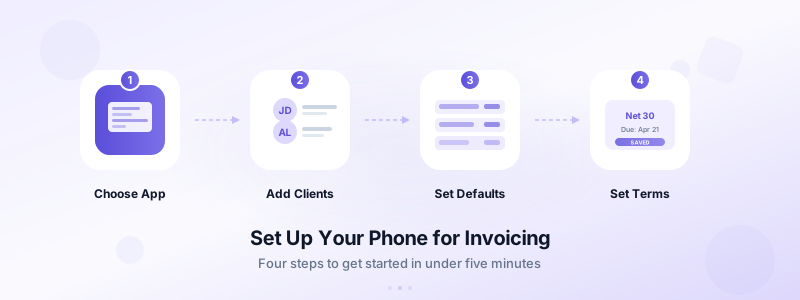
Before you send your first mobile invoice, spend five minutes setting things up properly. This upfront work saves hours later.
Choose the right app. You need an app that creates professional PDFs, stores client details, and lets you send invoices directly — all without requiring a desktop. Invoices Customers does exactly this on iPhone. It works offline, requires no account creation, and keeps all your data on your device.
Add your business details. Enter your business name, address, email, and phone number once. The app auto-fills this on every future invoice, so you never type it again.
Save your client list. Add your regular clients with their billing addresses, email addresses, and any tax information. When it's time to invoice, you select a client from your list instead of entering details from scratch. This alone cuts invoice creation time by half.
Set your default payment terms. Decide on your standard terms — Net 15, Net 30, or due on receipt — and set them as defaults. You can always adjust per invoice, but having a baseline means fewer decisions each time. Not sure which terms to use? Read our guide on what to include on an invoice for the full breakdown.
Create your first line item templates. If you frequently bill for the same services, save them as templates. A plumber might save "Service Call - Standard Rate" at $150 or "Pipe Repair - Per Hour" at $95. A graphic designer might save "Logo Design Package" or "Social Media Asset Set."
Step-by-Step: Send an Invoice from Your Phone
Here's the actual process, from opening the app to hitting send. This takes under two minutes once your setup is complete.
Step 1: Open your invoicing app and tap "New Invoice." The app assigns the next sequential number automatically. A solid invoice numbering system keeps your records clean and makes tax time painless.
Step 2: Select your client. Tap the client field and choose from your saved list. Their name, address, and contact details populate instantly. For new clients, enter their information now — it saves automatically for future invoices.
Step 3: Add line items. Tap to add each service or product. Include a clear description, quantity, unit price, and tax rate if applicable. Be specific: "Website redesign — homepage and 4 inner pages" beats "Web work." Specificity prevents disputes.
Step 4: Review totals. Check the subtotal, tax amount, and final total. Verify the payment due date matches your agreed terms. This 10-second check prevents the embarrassment of sending a wrong amount.
Step 5: Generate and send. Tap to create the PDF. Preview it to make sure everything looks right, then send it directly via email or share it through any app on your phone. The client receives a professional, print-ready invoice within seconds.
That's it. Five steps, two minutes, and your invoice is in the client's inbox while you're still on-site.
What Every Mobile Invoice Must Include
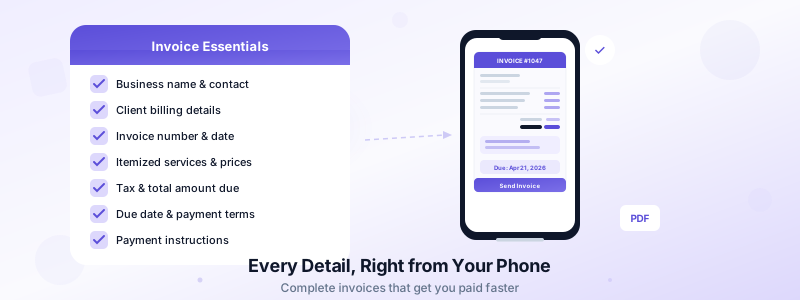
Sending from your phone doesn't mean cutting corners on content. Every mobile invoice needs the same elements as a desktop-created one. Here's a quick checklist.
Your business name and contact information go at the top. The client's name and billing address follow. Include a unique invoice number and the invoice date. List every service or product with descriptions, quantities, and prices. Show the subtotal, any applicable tax, and the total due in bold.
Add your payment terms and a specific due date — "Due by April 21, 2026" works better than "Net 30" because it removes ambiguity. Finally, include clear payment instructions: bank details, PayPal address, or a payment link.
If you're using Invoices Customers, the app handles formatting and layout automatically. You fill in the details, and it produces a PDF that looks like it came from an accounting department — not a phone screen.
One detail many mobile invoicers skip: a brief project description or reference number. Adding "Invoice for March website maintenance — PO #4521" at the top helps your client's accounts payable team process it faster. Faster processing means faster payment.
Common Mobile Invoicing Mistakes to Avoid
Mobile invoicing is simple, but a few pitfalls trip up new users.
Sending without proofreading. The small screen makes typos easy to miss. Always preview the PDF before sending. Check the client name, line item descriptions, and the total amount. One wrong digit in a $3,500 invoice creates an awkward conversation.
Forgetting to save client details. If you manually enter client information every time, you're wasting minutes per invoice and increasing your error risk. Save every new client to your contact list the first time you invoice them.
Using vague line item descriptions. "Consulting — $2,000" invites questions. "Marketing strategy consulting — 10 hours at $200/hr (March 1-15)" does not. Detailed descriptions protect you if a client disputes a charge later.
Not sending immediately. The whole point of mobile invoicing is speed. If you finish a job and think "I'll invoice tonight," you've already lost the advantage. Send it now. Right now. The two minutes it takes will save you days of waiting.
Skipping payment terms. Every invoice needs a due date and payment instructions. Without them, clients default to "whenever I get around to it." Clear terms set expectations and give you grounds for follow-up if payment is late. Check our guide on creating professional invoices for more on structuring your invoices effectively.
Start Sending Invoices from Your Phone Today
Mobile invoicing isn't a compromise — it's an upgrade. You bill faster, reduce errors, and present the same professional image you'd create at a desk. The only difference is you can do it from anywhere: a job site, a coffee shop, or the seat of your truck.
The setup takes five minutes. The payoff lasts as long as you're in business. Download Invoices Customers from the App Store, add your business details, and send your first invoice from your phone before the day is over. Your cash flow will thank you.
